Contributing Guide
Overview
This documentation site is written using Markdown, and uses Material for MkDocs, which is a Theme for MKDocs site generator tool.
The site is hosted on Github pages, and Github actions is used to automatically build the site from merges on the main branch from the markdown content.
Only Exosite team members can contribute
At this time, the source repository is a private and therefore only allowed Exosite team members can contribute.
To Contribute
Local Install of the Repository and Tools
These items must be done once.
Clone the github repository locally on your computer:
git clone https://github.com/exosite/docs_exosite.git
Technically you may change the code and commit it in the Github file editor UI but there is no way to preview these changes
Requires Python3
Building documentation with mkdocs relies on Python3 which must be installed on your computer. It's assumed here that python or pip commands are using python3.
Install Material for MKDocs, which uses Python3. The following command will install mkdocs-material in addition to extra plugins being used.
pip install -r requirements.txt
Updating Frameworks / libraries
Recommend running this locally to check for updates often.
To update to the latest mkdocs-material and additional dependencies, run:
pip install -r requirements.txt --upgrade
Building and Previewing Changes Locally
As you make updates to the content, you can (and should) build and run the site locally to verify your edits.
To build and serve your site locally run the following command from the repository directory:
mkdocs serve
You'll notice that at some point it will begin serving the site locally, with the message: Serving on http://127.0.0.1:8000 In your computer browser, go to that address: http://127.0.0.1:8000/
As edits are made, whenever a file is saved, it will update. It can take several seconds for the update to propagate to the hosted pages.
Just building, not Serving
To just build your site locally run:
mkdocs build
Your shell will output information, errors, warnings, and 404's that may be the result of your edits which need to be resolved before committing to a PR.
Making Updates
Create a branch that will be used for your pull request. Typically this branch should be named for a Jira ticket and/or the changes being made.
Note that commits to main are not allowed in most cases.
Please create a Pull Request when you want to commit your changes on our branch to the main branch.
Ensure any 'WARNING' or 'ERROR' messages are addressed from the build process before submitting your PR
A Github Action is set up to automatically build all updates to the main branch in github. https://github.com/exosite/docs_exosite/tree/main/.github/workflows
Note: In the rare cased needed (emergency), to manually update Github pages, use:
mkdocs gh-deploy --force
Guidelines
All content is in the /docs directory in this repository other than the home page override (see /overrides). The structure inside of this main docs directory attempts to be around subject matter.
.
├─ docs/
│  └─ assets/   # current 'everything collection of images, try not to use
│     └─ stylesheets/ # Exosite theme tweaks
│  ├─ changelog/
│  ├─ device-connectivity/
│  ├─ exchange/
│  ├─ exoedge/
│  ├─ exosense/
...
├─ overides/ # home page html, custom icons
└─ mkdocs.yml # nav, plug-in settings, theme settings, etc
For a new page to show up in the navigation, it must be added to the /mkdocs.yml file, under the nav: key. (Follow the formating for all of the other pages and sections).
nav:
  - Home: index.md
  - Getting Started:
    - Sign-up and deploy ExoSense: getting-started/deploy.md
    ...
Hiding pages
Pages in the repository that are not listed in the mkdocs.yml file will be built and available but will not show up in the nav. (e.g. this page which is only meant for Exosite team contributions).
Pages not include in the nav will show up in the search unless specifically called out in mkdocs.yml under
  - exclude-search:
      exclude:
          - page-i-do-not-want-in-search.md
Location of images, screenshots, etc
Historically we have used one large /docs/assets directory for all images, screenshots, etc. The recommendation is to use individual /asset directories in the different subject matter directories along with the content articles to make it easier to find and less likely to have naming issues. Overtime the expectation is images would be moved out of the main /docs/assets directory.
.
└─ docs/
   └─ exoedge/
      ├─ assets/
      └─ article1.md
Links
Limit the number of links on a page
Articles with lots of links can get confusing to read and make for a hard time editing at later times. With the side navigation, users should be able to find the information they need. Articles can mostly assume that users can dig into further detail themselves without having to provide a link for every mention of a technology.
In general, try to reduce the number of links in sentences - if it's important to provide a link for more context, provide it as it's own line / bullet point.
Links are relative to the current file's directory.
As a reminder:
/ is the root directory (should not be used as it may not be the same when built and hosted on dev, staging, local instances )
./ is the current directory of the current file
../ is the parent directory of the current file
Examples of links
Assume all examples are from article1.md
└─ docs/
  ├─ directory1/
  │  ├─ assets/
  │  ├─ article1.md
  │  └─ article1-1.md
  ├─ directory2/
  │   ├─ assets/
  │   └─ article2.md
  ├─ directory3/
  │  ├─ assets/
  │  └─ article3.md
  └─ article0.md
Link to file in same directory folder:
[my link text](article1-1.md)
[my link text](article1-1.md#header1)
[my link text](../article0.md)
[my link text](../directory3/article3.md)
Use Link IDs at bottom of page (recommended and useful to reuse on a single page)
[my link text][id-1]

[id-1]: article1-1.md
External links
[Exosite Support][exosupport]

[exosupport]: https://support.exosite.com
All of these link examples apply to images also
Formatting
Standard markdown formatting is used, which you can reference here: https://daringfireball.net/projects/markdown/.
MKDocs uses Python-Markdown to render the pages as HTML, if you are interested, you can read about the few exceptions here: Writing markdown with MKDocs.
Images
Standard markdown support for images, plus the additional additional support from Material for MKDocs for images.
You can change the image width with { width="300" } class
{: .screenshot }{ width="300" }
Screenshot Recommendations
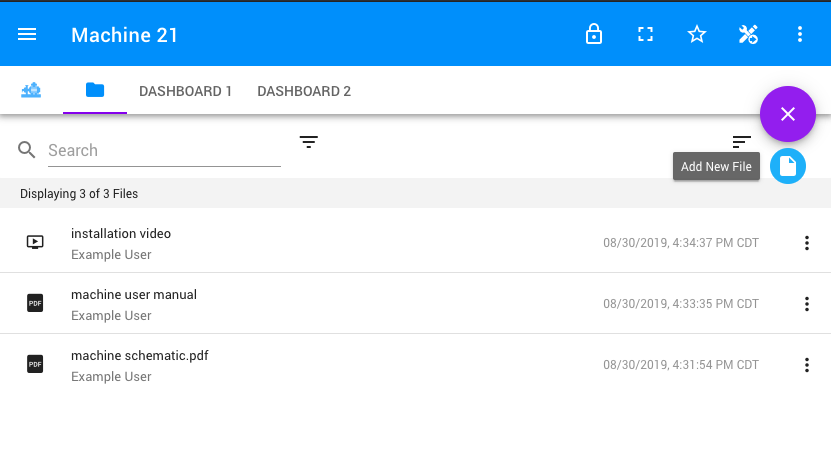
To get a standard consistent shadowbox on screenshots that looks ok for both white/dark background, we've added a custom class to add a box-shadow that can be used inline with your markdown.
{: .screenshot .image-ninety}
Result:
.screenshot {
  box-shadow: rgba(0, 0, 0, 0.4) 0px 0.25rem 0.5rem 0px;"
}

.image-fifty {
  width: 50%;
}

.image-ninety {
  width: 90%;
}

.image-seventyfive {
  width: 75%;
}
Dark/Light theme images
You can have two different images and only show one based on the dark / light mode using a hash at the end of the image link.
https://squidfunk.github.io/mkdocs-material/reference/images/#light-and-dark-mode


More image options
Further Image Styling
You can also use the <figure> element if you want to directly customize the image style or add a caption.
https://squidfunk.github.io/mkdocs-material/reference/images/#image-captions
<figure>
  <img src="../assets/exosense/asset_files.png" style="box-shadow: rgba(0, 0, 0, 0.4) 0px 0.25rem 0.5rem 0px;"/>
  <figcaption>Asset Content</figcaption>
</figure>
Call-outs / Admonitions
Hints, warnings, info call-outs can be created using this format:
!!! note
    Lorem ipsum dolor sit amet, consectetur adipiscing elit. Nulla et euismod
    nulla. Curabitur feugiat, tortor non consequat finibus, justo purus auctor
    massa, nec semper lorem quam in massa.
Which will look like this:
Note
Lorem ipsum dolor sit amet, consectetur adipiscing elit. Nulla et euismod nulla. Curabitur feugiat, tortor non consequat finibus, justo purus auctor massa, nec semper lorem quam in massa.
More info can be found at Material for MKDocs admonitions.
You can also use a custom Exosite admonition using format:
!!! exosite "Your Subject Here"
    Lorem ipsum dolor sit amet, consectetur adipiscing elit. Nulla et euismod
    nulla. Curabitur feugiat, tortor non consequat finibus, justo purus auctor
    massa, nec semper lorem quam in massa.
Your Subject Here
Lorem ipsum dolor sit amet, consectetur adipiscing elit. Nulla et euismod nulla. Curabitur feugiat, tortor non consequat finibus, justo purus auctor massa, nec semper lorem quam in massa.
Code Blocks
Standard markdown support for code blocks, plus Material for MKDocs additional code block handling
Example of syntax:
``` JSON
{ "key":"value1","key2":3}
```
{ "key":"value1","key2":3}
Extra Exosite icons
Additional icons can be added. These are found in /overides/.icons/exosite.
You can use them inline by using the format :exosite-device-1:, which generates ->